When managing user data in Thriving Springs, mobile numbers must be stored in the correct international format, including the + sign (e.g., +919503036367). However, Microsoft Excel often removes the + sign when opening or saving a CSV file. Follow the steps below to ensure that mobile numbers retain their full format.
Step-by-Step Guide
Step 1. Download the template document
Always use the provided template document and do not remove the headers. The headers are essential for the platform to correctly process the data.
Step 2: Add the Country Code (If Not Already Included)
If your mobile numbers do not already have a country code, you need to add it.
1. Add your mobile numbers into the first column.
2. In the adjacent column, use the following formula:
="91" & A2
Replace 91 with your actual country code.
A2 should be the cell containing the mobile number.
3. Press Enter and then double-click the bottom-right corner of the cell to apply the formula to all rows.
4. The numbers may appear in scientific notation (e.g., 9.18599E+11). This is just an Excel formatting, do not worry about it.
5. Copy these numbers and "Paste as Value" in the correct column. Delete the values from first column
At this stage, all numbers should have the correct country code.
Step 3. Add + sign in front of these numbers
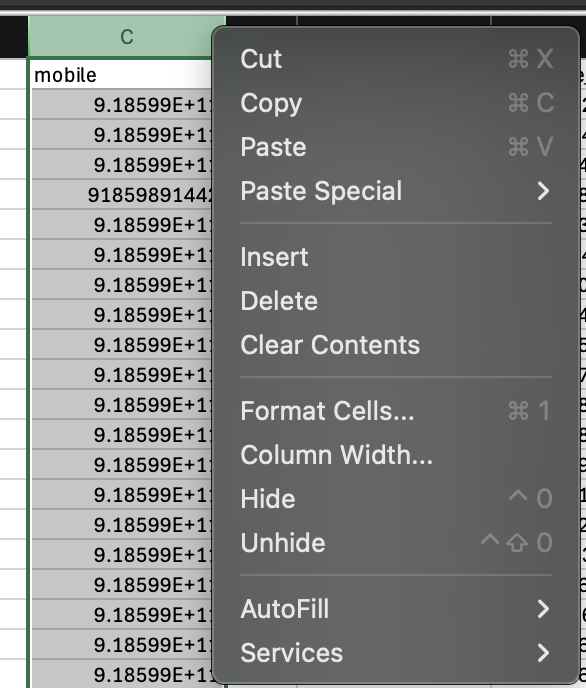
Now, click on the column to select all the values and right click and select Format Cells option
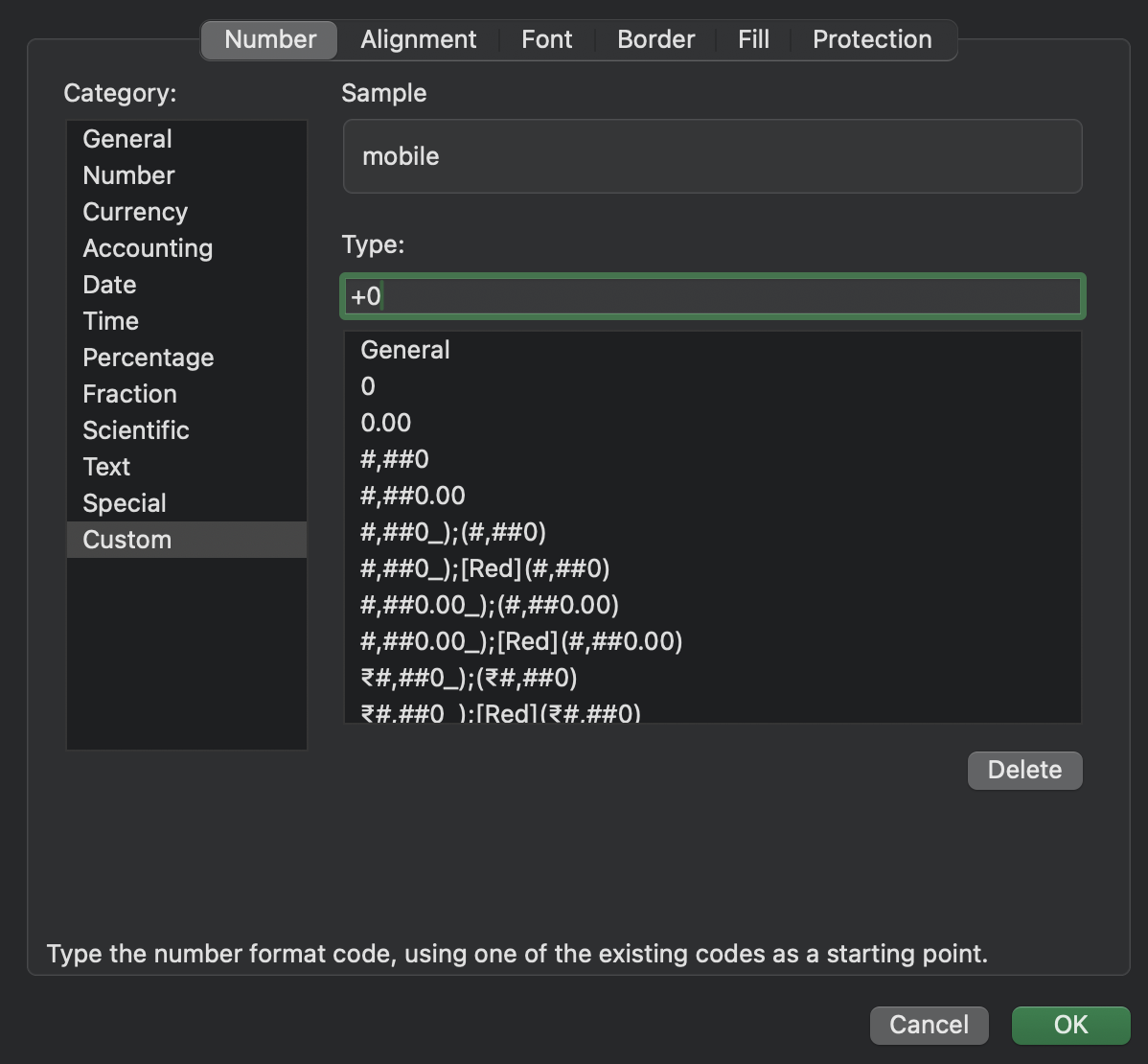
Next, select the last Custom option and in the Type field, put the +0 and hit Ok.
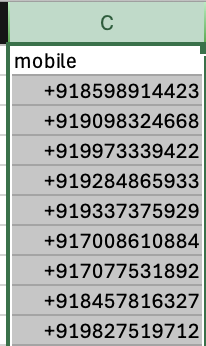
4. Save as CSV
That's all. Save as CSV and upload in the platform.
Was this article helpful?
That’s Great!
Thank you for your feedback
Sorry! We couldn't be helpful
Thank you for your feedback
Feedback sent
We appreciate your effort and will try to fix the article